Thank you for completing the Zscaler Design Questionnaire.
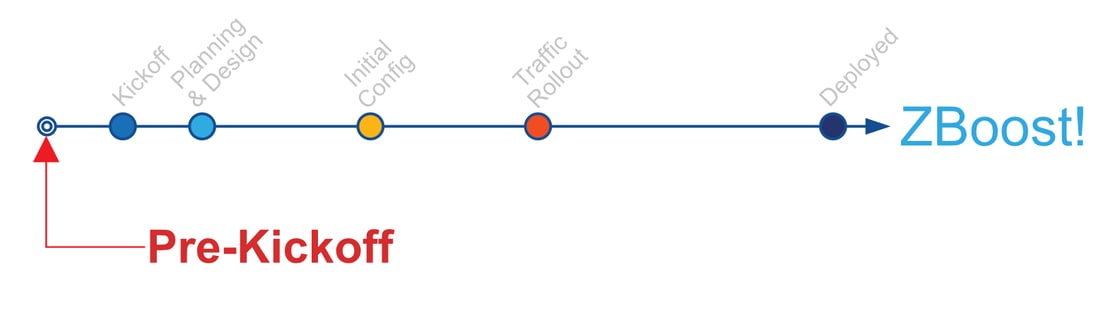
Before your project begins, please complete one key step that only you can do that will accelerate your deployment: configuring your organization’s Identity Provider (IdP) for Zscaler authentication and provisioning.
This ensures your users and groups are synchronized and ready before your kickoff call, whether your deployment includes ZIA (Zscaler Internet Access), ZPA (Zscaler Private Access), or both.
Action Required
Prerequisite: You must have received your tenant activation email from Zscaler (would have come from support@zscaler.com) and activated it.
Your organization’s Identity Provider (IdP), typically Microsoft Entra ID (Azure AD) or Okta, must be configured directly by your internal identity administrator.
This step cannot be completed by SecureDynamics, as we do not have access to your corporate IdP and may not yet have administrative access to your Zscaler tenant.
Your IdP Admin and/or Zscaler Admin needs to:
Configure OIDC (OpenID Connect) (Authentication) for end users in ZIdentity. Estimate: up to 2 hours
Enable SCIM provisioning (Authorization) to automatically synchronize users and groups.
Verify that users can authenticate successfully through the IdP and that group attributes appear within Zscaler.
Zscaler Help Center Configuration Guides
Each guide includes screenshots, attribute mappings, and downloadable PDFs that walk your team through the process step-by-step.
If your organization uses another identity provider, equivalent setup guides are available in the Zscaler Help Center.
Need Help?
Most customers complete this setup successfully using the Zscaler Help Center documentation. If your team would like guidance, you can open a request with SecureDynamics Support:
Description: Briefly describe where you need help in the SAML/SCIM process.
Important: During active deployment projects, SecureDynamics does not provide a formal SLA for support tickets. However, our Zero Trust Success Managers (ZTSMs) will make every reasonable effort to respond quickly and, if needed, coordinate a short working session to assist.
Bonus: Validate with Zscaler Client Connector
After your IdP configuration is complete, you can optionally confirm that authentication is working by installing the Zscaler Client Connector on one system only.
This is a short validation exercise, not a pilot rollout, and should only be performed to confirm that the user can successfully authenticate to Zscaler.
You can download the latest stable build (v4.7.0.113) directly from Zscaler’s official CloudFront CDN, the same trusted network that powers the Zscaler Client Connector App Store:
Once the authentication test is confirmed, immediately uninstall or disable the client. Do not leave it running, and do not use it for any other testing—your tenant has not yet been fully configured for secure traffic handling.
If you prefer, you can download the same installer from your Client Connector Portal by navigating to: Administration → Client Connector App Store → New Releases, then enabling version 4.7.0.113 and downloading the EXE (64-bit) build.
Recap
Completing your SAML and SCIM configuration now (across ZIA, ZPA, or both) ensures your deployment begins on time and with identity fully aligned.
Since SecureDynamics does not yet have access to your IdP or tenant, this configuration must be performed by your internal team. But rest assured, thousands of Zscaler customers complete this step easily using the Help Center documentation.
Once authentication is verified and the Client Connector is uninstalled, your SecureDynamics team will take it from there, focusing on policy design, testing, and Zero Trust enablement.
We look forward to guiding your organization through a smooth and successful Zscaler deployment.
Helpful Resources
Zscaler Deployment Advisor GPT – your interactive GPT guide for deployment sequencing, readiness validation, and early configuration insights.
If you want deeper guidance on any deployment topic—such as connector design, policy structure, or advanced configuration—enter #zboost followed by your most questions directly in our custom GPT.
For example:
#zboost how do I configure SCIM for ZPA with Entra ID?
ZBoost instantly connects you to validated technical content, deployment playbooks, and design templates to help you go even further.
Next Step – Schedule Your Kickoff
Once your IdP configuration is complete, please schedule your kickoff call with your Zero Trust Success Manager (ZTSM),TBD, here: TBD.